[Reservation Program] Extra 3. Apply SSL with Cafe24 Web Hosting SecureSign
With the Amazon cloud server deployment, I solved the problem for free by simply clicking on the DNS through ACM connection, but when I wanted to use domestic web hosting, I had to purchase an SSL certificate separately. Amazon provides free authentication to customers using AWS resources. Of course, using Amazon just for this costs more.
When I searched for SSL certification, I found a way to obtain it for free from the Zero SSL site and renew it every three months. However, I decided that it was not suitable for cases where I needed to continue to provide a stable service, so I purchased an SSL certificate using the SecureSign site. It would be a good idea to purchase and use an SSL certificate suitable for your website.
Applying SSL with SecureSign
1. Product selection First, look at the appropriate certificate plan and purchase it. For this project, I plan to run it as a test server, so I purchased the cheapest GoGetSSL Domain SSL 1yr (7,000/yr) with a 1-year plan. - Be sure to check the specific plan. In the case of one domain and compensation, I decided that it did not apply to me, so I chose 50,000 won because it was okay.
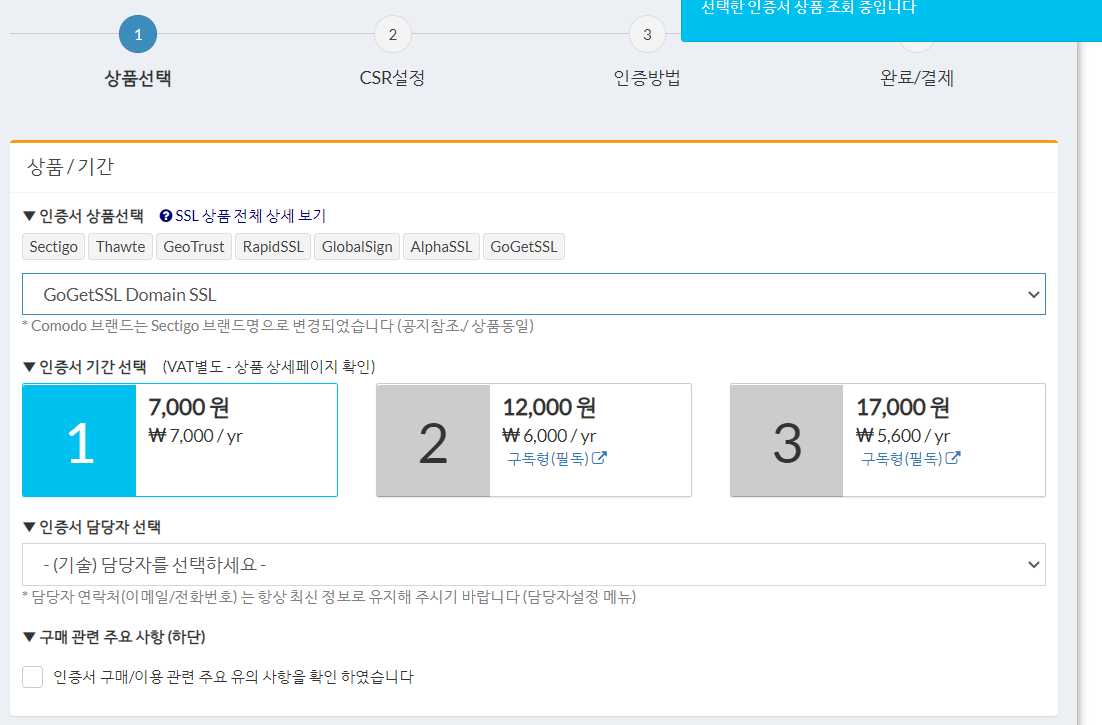
2. CSR settings
You can create and register a CSR at Cafe24, or you can just select automatic generation. For this project, information was entered automatically.
3. Authentication method
I used DNS authentication when deploying AWS, so I used email authentication this time. This is because I wanted to introduce the ability to retrieve and authenticate POP mail.
4. Completion/Payment
After completing payment, a window will appear where you can test authentication.
Authenticate by connecting via email
I selected email authentication and sent the email to confirm that it was properly received through web FTP.
Create POP mail in Hosting Management > Basic Management > Add/Delete Email Account. When creating a POP email, you must have an email account selected for SSL authentication. If you do not have one, create one and resend the email after 10 minutes on the SecureSign site. If the mail is received properly, you can see that the mail usage has slightly increased from 0M.
POP mail was solved by importing external mail from Google Gmail. In Gmail settings (view all settings, of course), use Accounts and import > Import mail and address book. Register the POP mail account for which you applied for authentication. Afterwards, the following window will appear.
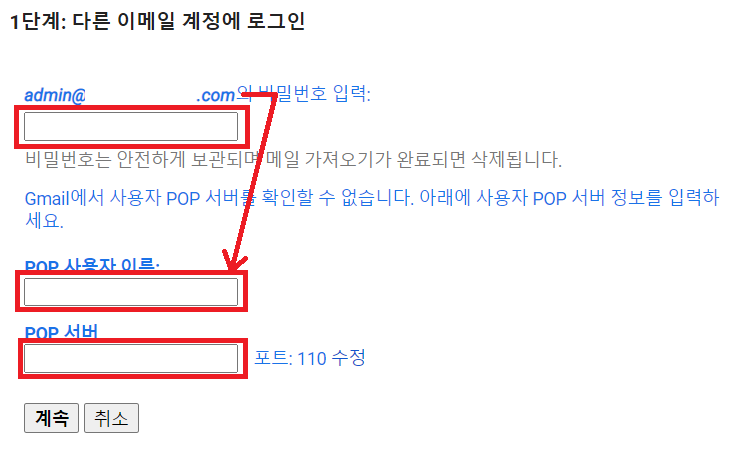
- Enter your POP mail password as the password. If you don't remember, you can edit it at Cafe24 WebFTP, so don't worry.
- The POP user name is the same as the POP mail account.
- The POP server is listed in Cafe24 Web FTP email account management tips. (Bottom part of email registration window)
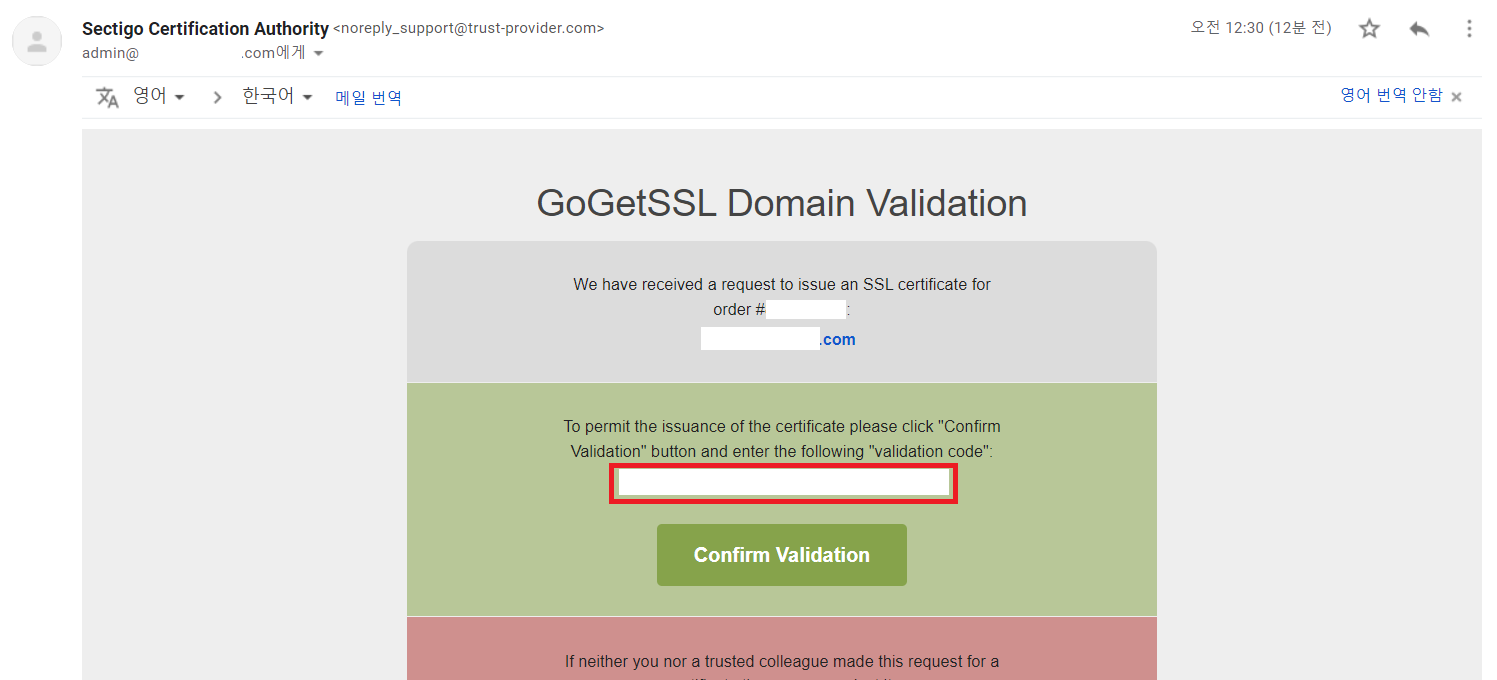
If the email has been registered properly, you will see an email for authentication. Copy the validation code from the email for authentication and click the confirm validation button to register. Then, you can see that authentication is completed and the certificate is issued almost immediately.
Certificate Register on Cafe24 Web FTP
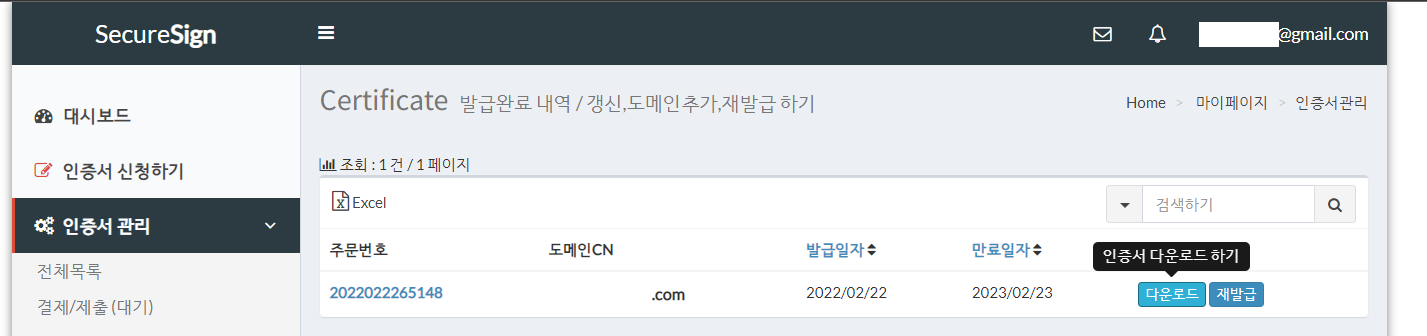
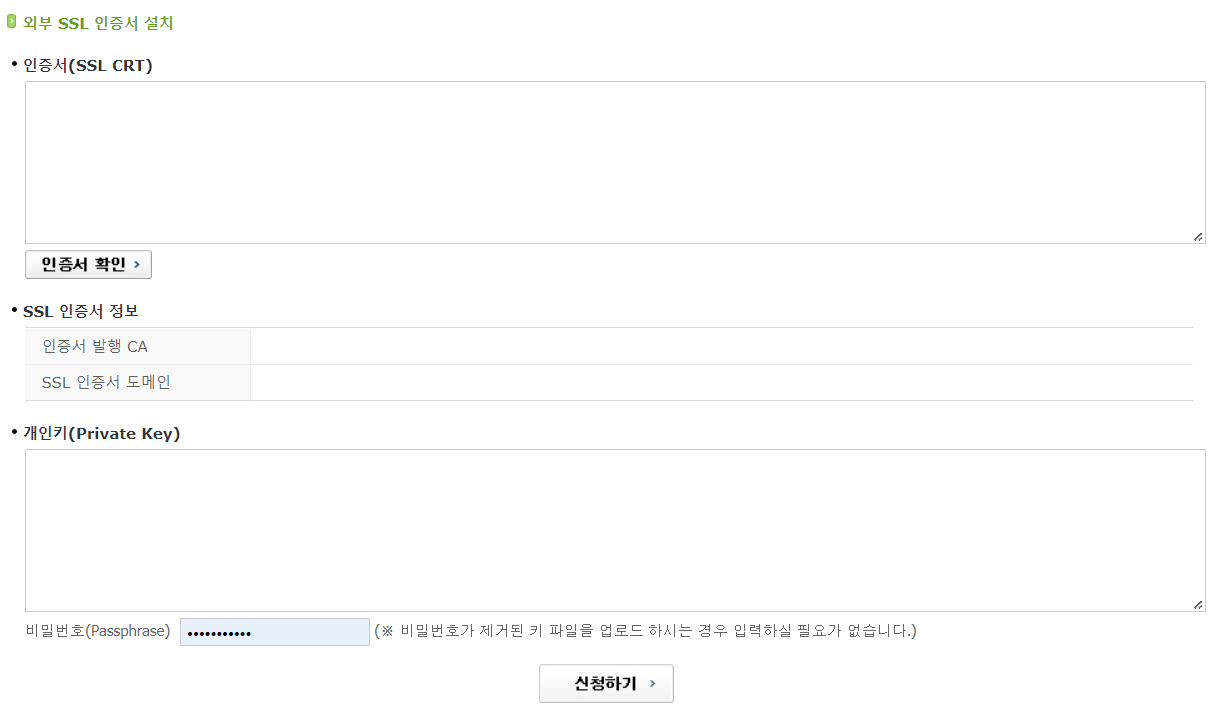
You can see that authentication has been completed on the SecureSign site. If you download the certificate and unzip it, you will see the key.pem file and crt.pem file. Then, use these files to register in Cafe24 WebFTP external certificate management and that’s it.
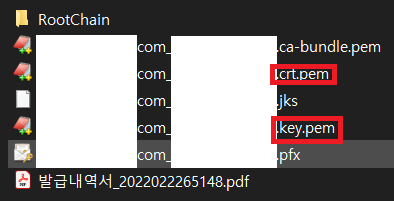
First, open the crt.pem file, copy the contents to the SSL CRT, and click Verify Certificate to check the SSL certificate information. Then, open the key.pem file in the same way, paste it into the private key field, and click apply to finish.
SSL authentication was completed immediately, and I was able to see the domain connected to https://. Success :)